
Why we end up with so many tabs
Tabs are cheap to open and feel risky to close. Each one is a small promise: read this later, reply to that, compare these prices. The result is a tab strip so crowded that the titles disappear, Chrome uses more memory, and finding anything takes longer than opening it again.
The fix isn’t willpower. It’s making tabs easy to find, safe to close and tidy by default.
1. Use Chrome’s built-in tools
Search your tabs
Chrome has a tab search: press Ctrl Shift A (⌘ Shift A on a Mac) to search open and recently closed tabs.
Group related tabs
Right-click a tab and choose Add tab to new group. Name and colour the group, and click its name to collapse it.
Let Chrome free memory
In Chrome’s settings, under Performance, Memory Saver frees memory from tabs you aren’t using.
Reopen what you closed
Ctrl Shift T (⌘ Shift T on a Mac) reopens the last closed tab or window. Press it again to go further back.
Pin the tabs you always use
Right-click a tab and choose Pin. Pinned tabs shrink to an icon and stay on the left.
2. Make every tab findable in one keystroke
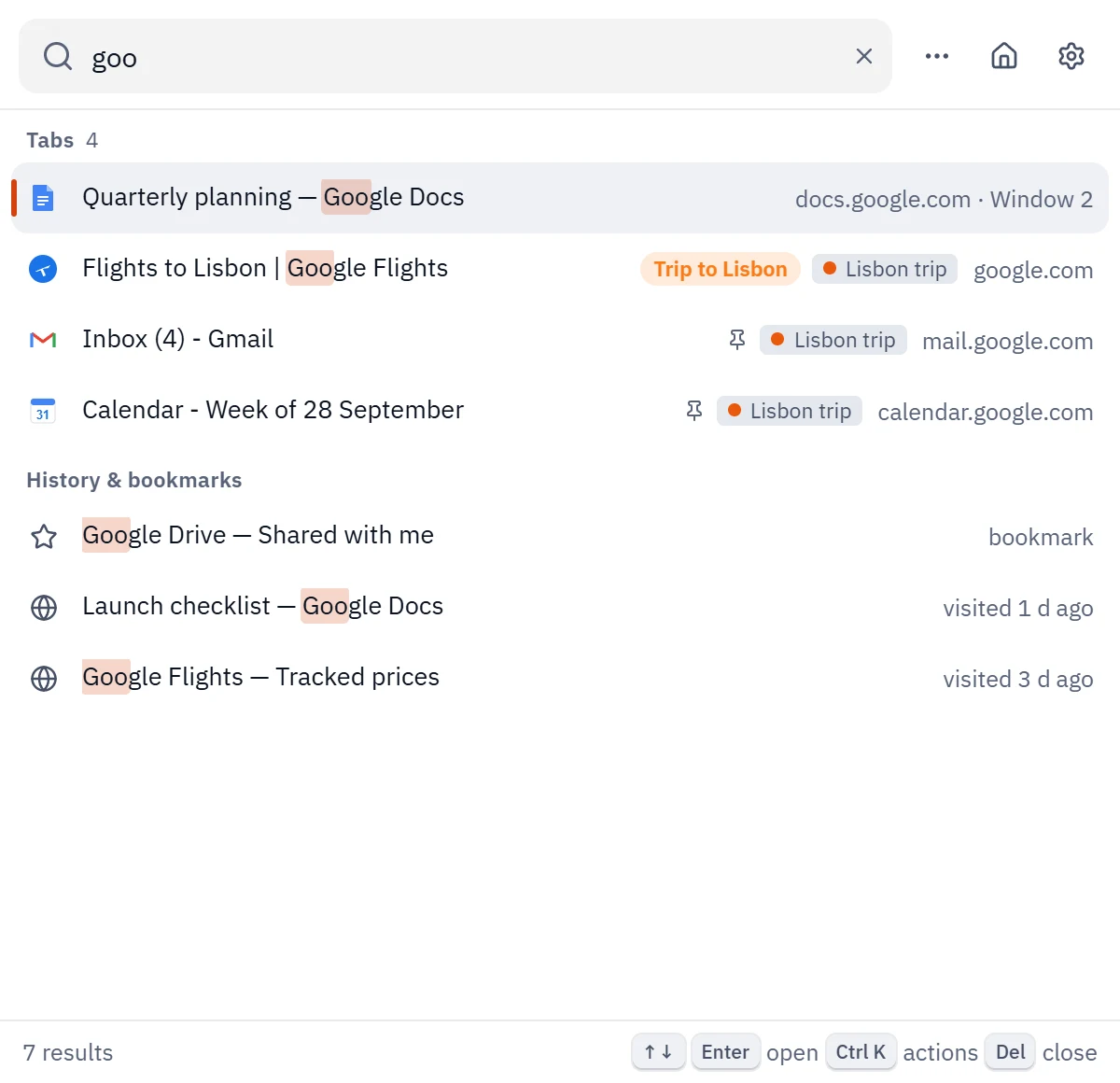
The fastest way to deal with too many tabs is to stop scanning the tab strip. With a tab manager like Tab Nemo, press Alt T, type two or three letters of a title or site, and press Enter. It searches every window at once, and can include notes, saved tabs, history and bookmarks.
3. Make closing tabs safe
Most tabs stay open because closing them feels permanent. Remove that fear:
- Park tabs you want later: they close, but stay saved and come back with one click.
- Save a window as a session before you switch to something else.
- Keep a history of your windows. Tab Nemo’s Rewind lets you go back to how your windows were an hour or a day ago, even after a crash.
4. Let tabs tidy themselves
Rules beat routines. Set them once:
- Auto-group tabs by site or keyword, so all your docs, tickets or travel tabs gather on their own.
- Auto-sleep tabs you haven’t used for a while, so they stop using memory.
- Auto-park tabs you haven’t opened in a week.
5. Give each project its own window
Mixing work, travel plans and reading in one window is how tab counts explode. Keep one window per project, and close it without worry: a project in Tab Nemo remembers its tabs, tasks and notes, and reopens exactly as you left it.
6. Block the rabbit holes
Some tabs are open because a feed pulled you in. A focus timer that blocks those sites for 25 minutes is often all it takes to finish what you started.
A simple routine that works
- Press Alt T instead of hunting in the tab strip.
- Once a day, park what you won’t touch today.
- Keep one window per project.
- Let auto-grouping and auto-sleep handle the rest.