
Home / Switch
Switch from another tab manager
Bring every saved tab with you. Tab Nemo reads exports from the most popular Chrome tab managers, shows you what’s inside, and imports it in a couple of clicks.
What comes across
| What you export | Where it lands in Tab Nemo |
|---|---|
| A list of links (text, one link per line), saved as a .txt file | Parked, one set per list |
| A JSON export of saved sessions, collections or workspaces | Sessions, one per collection |
| A Tab Nemo backup from any version | Everything in it: notes, sessions, projects, settings and more |
How to switch, step by step
- Install Tab Nemo from the Chrome Web Store.
- Export from your old tab manager. Use its export option and save the file. If it shows your links as text, copy the text and save it as a .txt file.
- Open Tab Nemo’s settings (the gear in the popup) and go to Backup & data.
- Under Restore or import, choose Choose file… and pick your export.
- Check the preview, pick what to bring in, and import. Anything you already have is skipped.
Everything happens inside the extension on your computer. Nothing is uploaded, and your old tab manager keeps its data.
What you get after switching
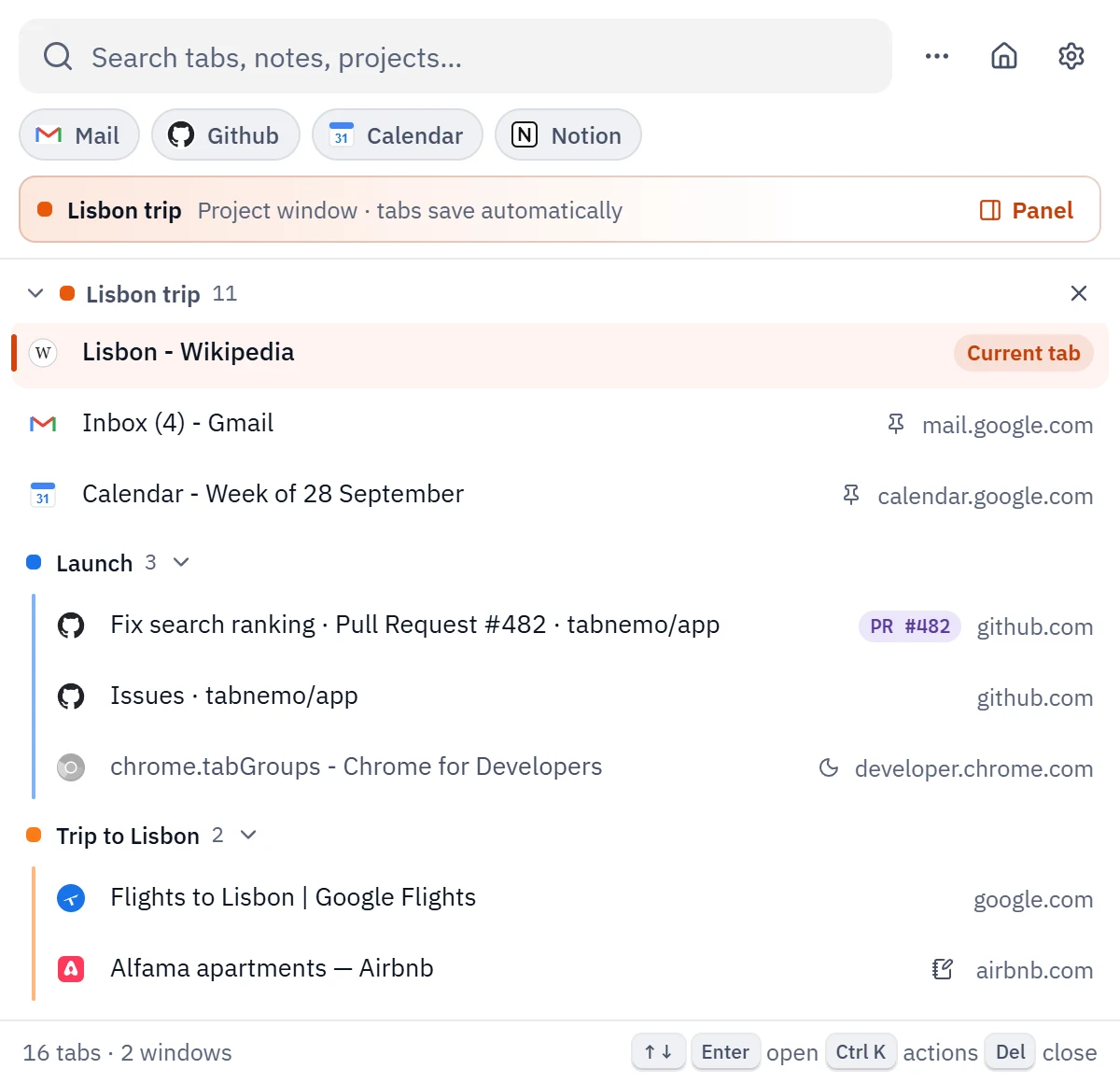
- Search everything at once: open tabs, parked tabs, sessions, notes and projects from one box (Alt T).
- Rewind: a history of your windows, so a crash or a closed window never costs you tabs again.
- Tabs that tidy themselves: auto-grouping, auto-sleep and optional auto-park.
- Projects and Focus mode: one window per piece of work, and a blocker for distracting sites.
- Private by design: no account, no servers, no tracking.
Questions about switching
What do I get that a simple tab saver doesn’t have?
Tab Nemo’s Park puts tabs away like a tab saver does, and adds instant search across open and parked tabs, Rewind, auto-grouping, auto-sleep, sessions and projects. Saved link lists import straight into Parked.
Will importing change my tabs or settings?
No. You see what’s in the file and pick what to bring in. Items you already have are skipped, and your settings stay as they are.
Is my data uploaded while importing?
No. The file is read inside the extension on your computer.
Can I keep using my old tab manager?
Yes. Importing copies your tabs; nothing is removed from the other extension.